LiveMetrics vs Stats (exelban): an honest comparison
Stats is the go-to free, open-source menu-bar system monitor for Mac — and it's genuinely great. LiveMetrics is a smaller, simpler alternative that adds one thing Stats doesn't: live power draw in watts. Here's a fair, side-by-side look so you can pick the right one.
LiveMetrics vs Stats vs iStat Menus
All three live in your Mac's menu bar and read local system stats — none is a speed test or a cloud service. The honest differences come down to price, whether the code is open source, and which metrics you get. The biggest practical split: only LiveMetrics shows live power draw in watts, and only Stats is open-source.
Read the table top to bottom for the quick verdict; the sections below explain what each app does that the others don't.
- Stats: free, open-source (MIT), the broad community standard.
- LiveMetrics: free, tiny ~1.4 MB notarized build, adds live watts.
- iStat Menus: a paid app (around $12 one-time), the deepest dashboard.
| LiveMetrics | Stats (exelban) | iStat Menus | |
|---|---|---|---|
| Price | Free | Free | Paid (around $12 one-time) |
| Open-source | No (free, notarized .dmg) | Yes (MIT, on GitHub) | No |
| Live power draw (watts) | Yes | No | Yes |
| Network speed in menu bar | Yes (live, every second) | Yes | Yes |
| CPU / GPU / RAM | Yes (CPU overall + per-core) | Yes | Yes |
| Temperatures | Yes (CPU/GPU/RAM via Apple SMC) | Yes | Yes |
| Fans | Yes (monitor RPM, not control) | Yes (monitor) | Yes (monitor) |
| Footprint | ~1.4 MB, no Dock icon | Larger app | Full suite |
| Tracking | None, local-only | None, local, open-source | Local |
| Install | Notarized .dmg, double-click | Homebrew or .dmg | Paid download / Setapp |
| Best for | Live watts + tiny, simple, just works | Open source + broad configurability | Deepest paid all-in-one dashboard |
LiveMetrics vs Stats (exelban) vs iStat Menus — Mac menu-bar system monitors compared. Details accurate as of June 2026; check each vendor for current pricing. Stats is by Serhiy Mytrovtsiy (exelban); iStat Menus is a trademark of Bjango.
What Stats does that LiveMetrics doesn't
Stats is the safe, popular recommendation for good reasons, and it's important to be honest about them. It's fully open-source under the MIT license, so anyone can read, audit, fork, or contribute to the code — something LiveMetrics is not.
Stats is also installable via Homebrew (brew install --cask stats), which many developers prefer for scripted setups. It's broad and deeply configurable, with a large community, frequent updates, and a wide range of widgets and display options built up over years. If open source, Homebrew, or maximum configurability matter most to you, Stats is the better fit.
- Open-source (MIT) — auditable, forkable, community-driven.
- Installable via Homebrew for scripted, reproducible setups.
- Broad, mature, and highly configurable with many widget options.
- Free, like LiveMetrics, with no account and local-only stats.
What LiveMetrics does that Stats doesn't
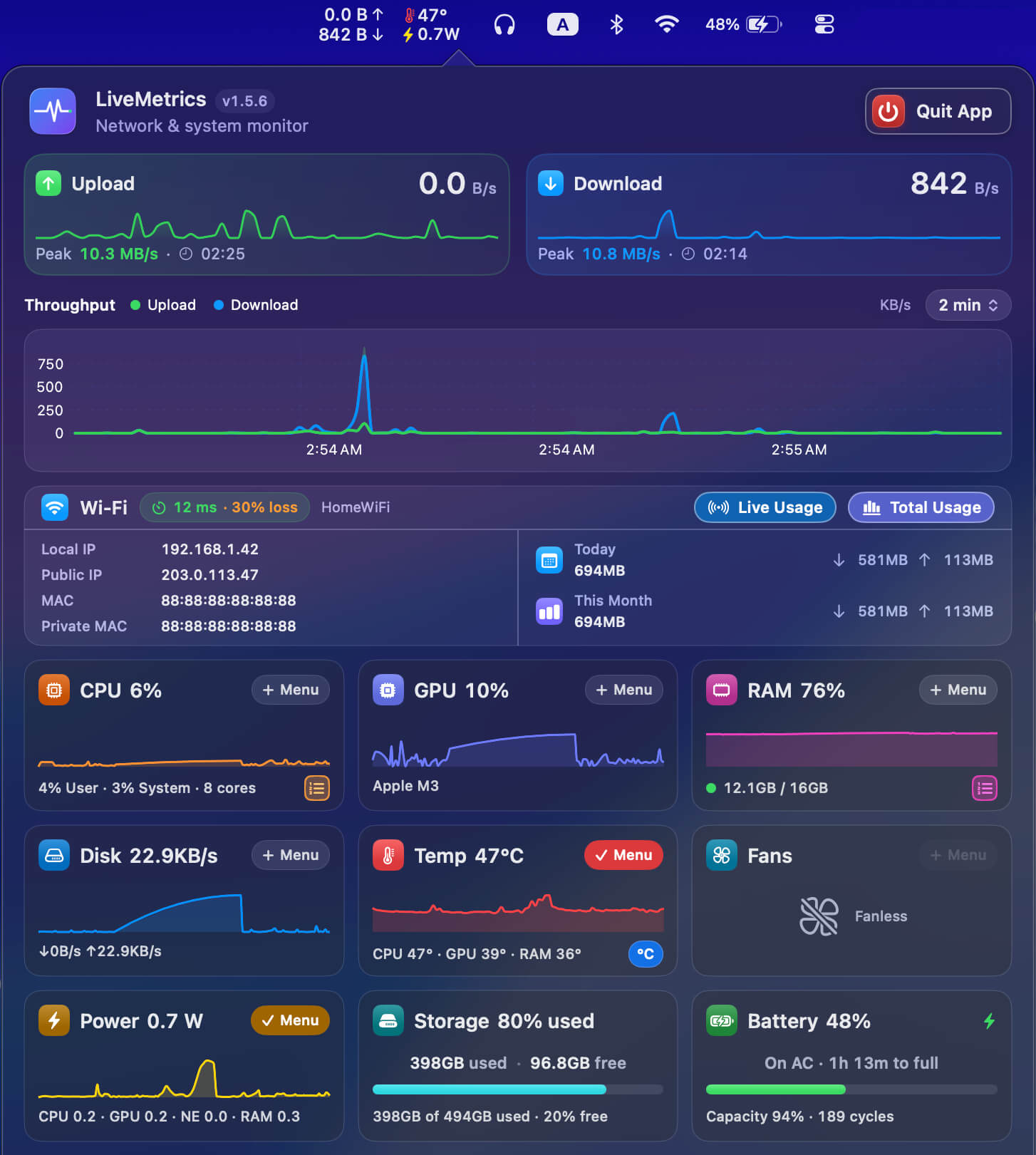
LiveMetrics is narrower and simpler by design, but it adds a few things worth knowing. The headline is live power draw in watts: on Apple Silicon it reads per-domain SoC power (CPU, GPU, Neural Engine, RAM) from the IOReport energy model, plus whole-machine draw from the battery when unplugged — root-free, no kernel extension, no Terminal. macOS has no built-in live wattage number (Activity Monitor's Energy Impact is a relative score, not watts), so this is a genuinely uncommon feature.
It's also tiny and dead-simple: a ~1.4 MB notarized, signed .dmg that opens with a normal double-click and works the moment you launch it. By default it shows temperature and power draw alongside live network speed, with CPU, GPU, RAM, disk and fans one tap away, and you can pin up to six customizable chips total. Storage and, on laptops, battery show as read-only popover cards. No setup ritual, no Dock icon, auto-updates, no accounts, no tracking.
- Live power draw in watts (per-domain on Apple Silicon) — Stats doesn't show watts.
- Tiny ~1.4 MB notarized, signed build; opens with a double-click.
- Works out of the box: temperature and power draw pinned by default, up to six customizable chips.
- Live network speed in the menu bar every second, with today's peak and a 1–30 min rolling graph.
Which should you choose?
Choose Stats if open source matters to you, you want Homebrew installation, or you want the broadest, most configurable monitor backed by a large community. It's free, mature, and an easy default.
Choose LiveMetrics if you want live power draw in watts, prefer a tiny notarized app that just works, or value a dead-simple setup over deep configuration. Both are free, both stay local, and both monitor (rather than control) your hardware — so the decision is really about open source and Homebrew versus watts and simplicity.
- Want open source or Homebrew? → Stats.
- Want live watts or a tiny, simple app? → LiveMetrics.
- Want the deepest paid dashboard with history and alerts? → iStat Menus.
Honest limits of both apps
To keep this fair: LiveMetrics is free and notarized but not open-source, so you can't audit its code the way you can with Stats. Both apps show live values — current speed, load, temps, watts — not long-term history or cumulative data totals. Both monitor fans (per-fan RPM, or 'Fanless'); neither controls fan speed.
Power-draw detail is fullest on Apple Silicon and degrades gracefully on Intel Macs and desktops. Neither LiveMetrics nor Stats is a network speed test — they passively report the real traffic and sensor readings already flowing through your Mac.
- LiveMetrics is not open-source; Stats is (MIT).
- Both show live values, not long-term history or data totals.
- Both monitor fans but do not control them.
- Neither is a speed test — both are passive, local monitors.
Download LiveMetrics — Free macOS 14 Sonoma or later · Apple Silicon & Intel · no account, no tracking
FAQ
Is LiveMetrics or Stats better for Mac?
Neither is strictly better — they fit different needs. Stats is free, open-source (MIT), Homebrew-installable, and broadly configurable. LiveMetrics is free but not open-source; it adds live power draw in watts, ships as a tiny ~1.4 MB notarized app, and works out of the box. Pick Stats for open source, LiveMetrics for watts and simplicity.
Is Stats (exelban) free and open-source?
Yes. Stats by exelban (Serhiy Mytrovtsiy) is a free, open-source menu-bar system monitor for Mac, released under the MIT license on GitHub and installable via Homebrew (brew install --cask stats). It's broad, mature, and highly configurable. LiveMetrics is also free but is not open-source, distributed instead as a notarized .dmg download.
What does LiveMetrics do that Stats doesn't?
The main difference is live power draw in watts, which Stats doesn't show. On Apple Silicon, LiveMetrics reads per-domain SoC power (CPU, GPU, Neural Engine, RAM) plus whole-machine draw from the battery. It's also a tiny ~1.4 MB notarized app that works out of the box — temperature and power draw pinned by default, with CPU, GPU, RAM, disk and fans one tap away — and no setup.
Is LiveMetrics open-source like Stats?
No. LiveMetrics is free and Apple-notarized but not open-source, so you can't audit or fork its code. If open source is a requirement, Stats by exelban (MIT licensed, on GitHub, installable via Homebrew) is the better choice. LiveMetrics' trade-off is a tiny ~1.4 MB build, live watts, and a dead-simple, double-click setup.
Can both Stats and LiveMetrics show CPU temperature in the menu bar?
Yes. Both read temperatures from the Apple SMC and can show CPU, GPU and RAM sensor readings in the menu bar — in °C or °F on LiveMetrics. Both also report fan speed in RPM but only monitor fans, they don't control them. Neither shows long-term temperature history; iStat Menus, a paid app, goes deeper there.
Do LiveMetrics or Stats track me or need an account?
No. Neither LiveMetrics nor Stats requires an account, and both read only local stats with no tracking — the data stays on your Mac. LiveMetrics auto-updates and has no Dock icon; Stats is open-source so its behavior is publicly auditable. Both require macOS and run natively on Apple Silicon and Intel Macs.